KeepNotes

Protect Your Notes with Passwords

Published on May 18, 2025

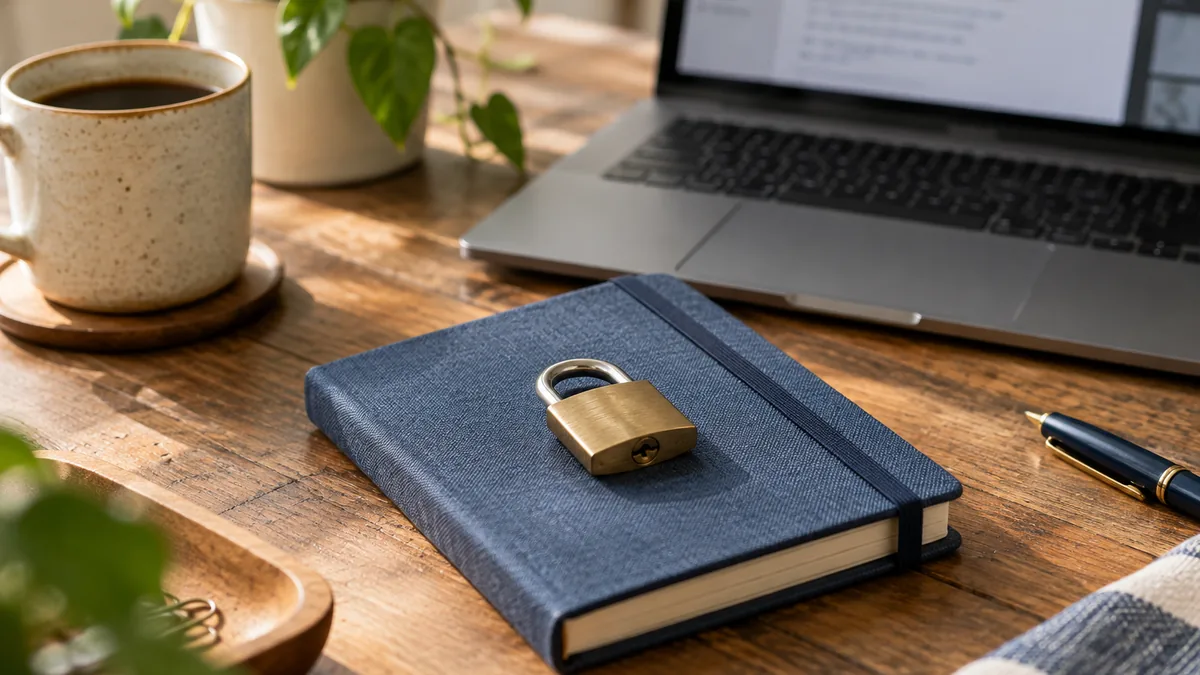
In a world where digital privacy is increasingly under threat, the ability to protect your personal content with a password is no longer a luxury — it is a necessity. Whether you are writing a personal journal, drafting a confidential business plan, or simply keeping a private to-do list, KeepNotes allows you to password-protect your notes with just one click, ensuring that only you or your trusted contacts have access to your content.

Why Password Protection Matters

Every note you write online has a URL that can potentially be discovered or shared. While KeepNotes uses random four-character slugs that are virtually impossible to guess, there are situations where you want an extra layer of security. Perhaps you are sharing a note with a specific colleague and want to make sure no one else can read it. Or maybe you are using a shared computer and want to prevent the next person from seeing your content.

Password protection addresses all of these concerns. When a note is locked, anyone who visits the URL will see a password prompt instead of the note content. Without the correct password, the note remains completely inaccessible. This applies to both reading and editing, so your content is protected from both prying eyes and unauthorized modifications.

How to Lock a Note: Step by Step

Adding password protection to your note is straightforward and takes less than thirty seconds:

  1. Create or open your note at KeepNotes.online. You can protect both new and existing notes.
  2. Click the lock icon in the top toolbar. This opens the password protection dialog.
  3. Enter your desired password. Choose something memorable but not easily guessable. A good password combines letters, numbers, and is at least eight characters long.
  4. Add a password hint (optional). The hint will be visible to anyone who encounters the password prompt, so make it helpful to you without giving away the actual password.
  5. Save. Your note is now locked and protected.

Once locked, the lock icon in the toolbar will change to indicate that the note is protected. You will also see a visual indicator confirming the active protection status.

Unlocking a Note

When you or anyone else visits a password-protected note, a clean and simple password prompt appears. The note's content is completely hidden until the correct password is entered. If you set a password hint, it will be displayed below the input field to help joggle your memory.

Once the correct password is entered, the note unlocks and becomes fully readable and editable for that session. If you close the browser or navigate away, the note will be locked again the next time someone visits the URL, providing continuous protection.

When to Use Password Protection

Password protection is valuable in many scenarios that you might not immediately think of:

Password Hint Best Practices

The password hint feature is designed to help you remember your password without compromising security. Here are some tips for writing effective hints:

How KeepNotes Handles Your Password

Security is only as good as the implementation behind it. At KeepNotes, we take password handling seriously. Your note passwords are never stored in plain text. They are hashed using bcrypt, the same algorithm trusted by major financial institutions and security-critical applications. This means that even if our database were somehow compromised, your passwords would remain protected.

Additionally, the note content itself is encrypted using AES-256-CBC encryption on the server. This military-grade encryption standard ensures that your data remains unreadable to anyone without the proper decryption key. We designed this system so that not even the KeepNotes team can read the contents of your protected notes.

Removing Password Protection

If you decide that you no longer need password protection on a note, removing it is just as easy as adding it. Open the note, click the lock icon, and choose the option to remove the password. The note will immediately become publicly accessible again via its URL. You can add and remove protection as many times as you want, giving you complete flexibility over your note's privacy level.

Combining Password Protection with Other Features

Password protection works seamlessly with all other KeepNotes features. You can lock a note that has file attachments, and the attachments will be inaccessible without the password. Version history continues to work normally on protected notes, so you can still browse and restore previous versions after unlocking. You can also share a password-protected note via QR code — the recipient will scan the code, land on the note's URL, and then be prompted for the password.

Your privacy is our priority. Start protecting your notes today at KeepNotes.online — no account required.