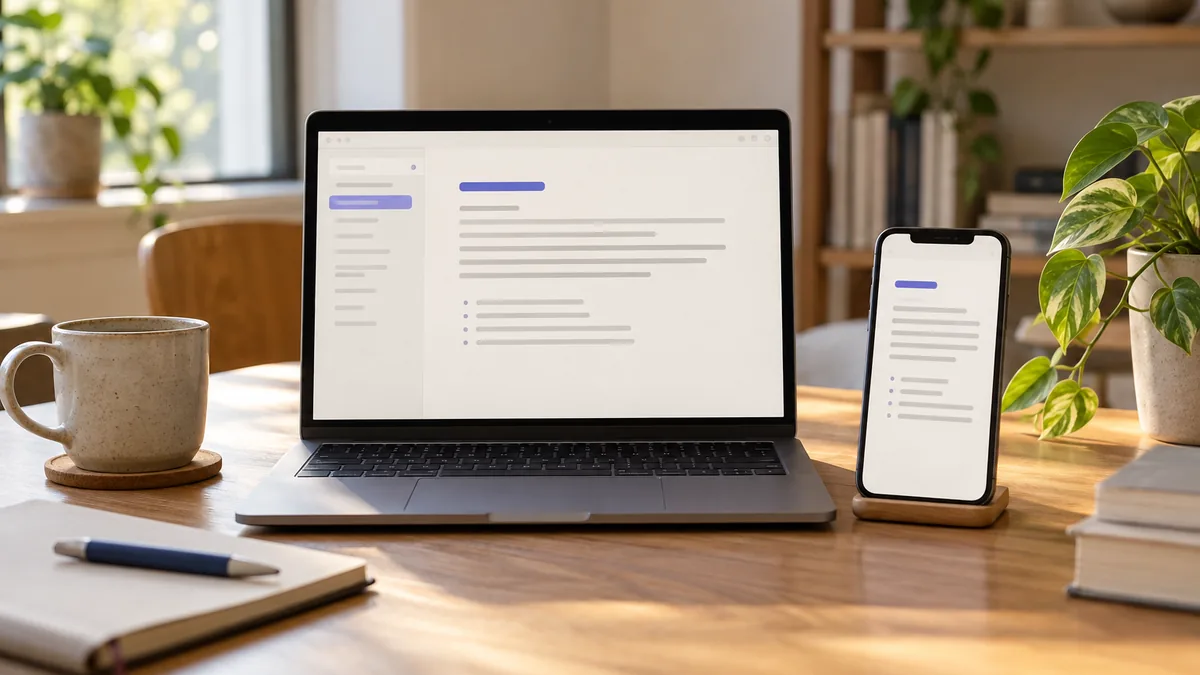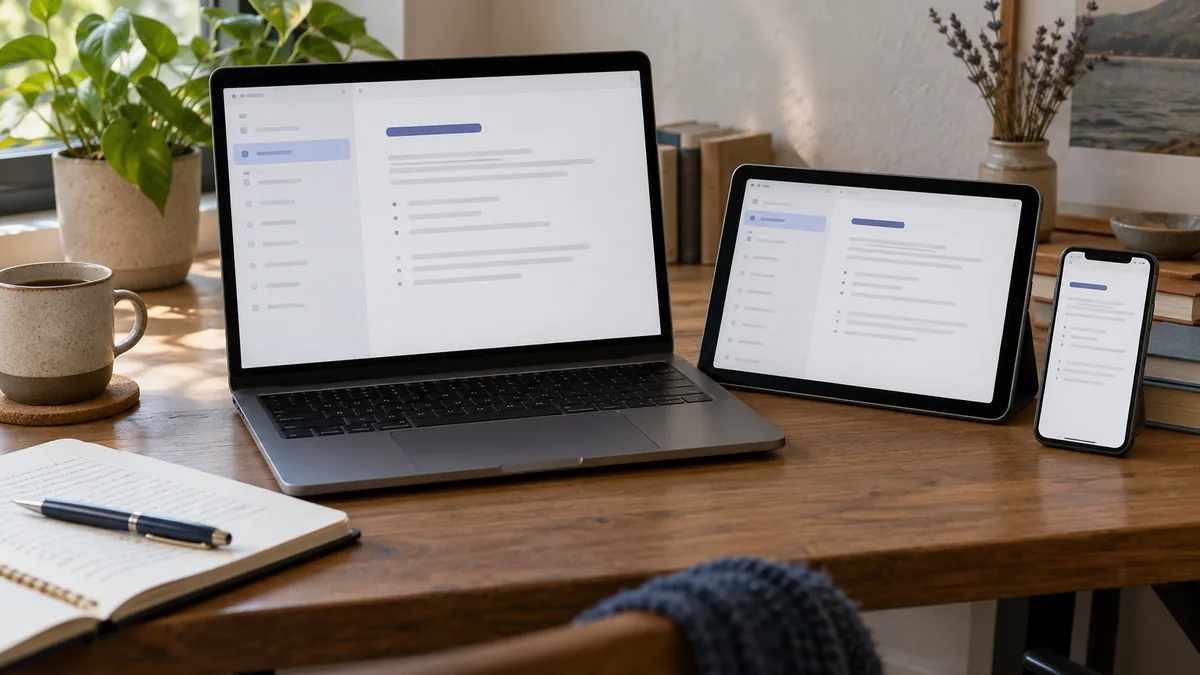
You wrote a note on your laptop, but now need it on your phone. Bring the note's address across first. Opening the homepage does not identify the note you meant.
Use the same URL
Copy the note link on the first device and open it on the second. A bookmark, a message to yourself, or your account's note list helps you return to it.
Test with ordinary text: write “Check from phone,” pause for the online save, then open the link on your phone. Confirm it matches before using this workflow for longer work.
Check account and password access
An account-owned note requires the owning account. A password-protected note may need unlocking in the new browser session.
An unowned, unlocked note is accessible to anyone with its address. Avoid moving private text through an unrestricted link. The privacy checklist helps you choose access settings.
Work on one device at a time
Browser access is not the same as a collaborative editor that merges changes. If two devices edit at once, one save can replace another.
- Finish your edit on the first device.
- Pause and confirm the save while online.
- Open or refresh the note on the second device.
- Compare the opening lines before continuing.
- Leave the first copy alone while editing the second.
If versions differ, copy both to local text files before refreshing or replacing anything.
A temporary cross-device clipboard
For a non-sensitive snippet, use a clear heading:
Copy to phone
Workshop address: [public address]
Parking entrance: east side
Open the URL on your phone, copy what you need, and remove the temporary content afterward. This shortcut is unsuitable for passwords or recovery codes.
Prepare for connection gaps
Export anything needed on a train, plane, or unreliable network. The offline guide explains how to test the copy.
Installing the web app makes it easier to launch on both devices. Keep the individual note links too.